Open Source · Runs on 8 platforms

The grown-up nano that
runs everywhere.

A full-screen terminal editor with project management, integrated builds, and syntax highlighting. Works equally well with mouse or keyboard — click and drag to edit, or keep your hands on the keys. Neither is a fallback; both are first-class. Compiles on your Mac M3, on Linux, and on decades-old Unix workstations. Zero dependencies. Just make.

macOS users: Do not run cm directly until you run bash install.sh from the extracted archive. The installer clears the macOS Gatekeeper restriction automatically.

macOS (ARM64 / x86) Linux (x86_64) Raspberry Pi NetBSD Solaris SunOS IRIX
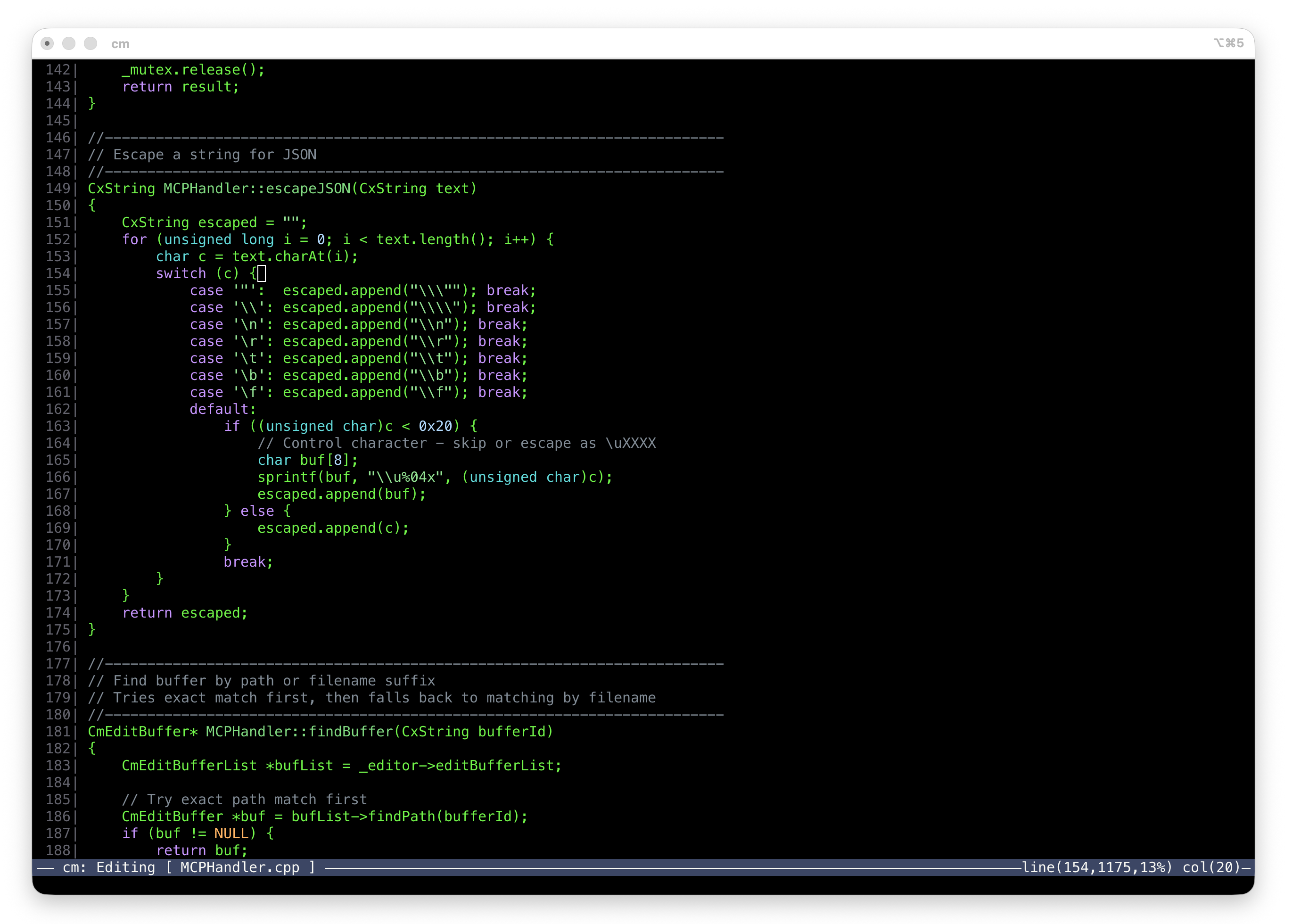
cmacs editor showing C++ source code with syntax highlighting
click. drag. done.

Mouse or keyboard — equal citizens

Click to place the cursor, drag to select, scroll with the wheel. Or do it all from the keyboard. Neither path is a fallback — every operation works fully both ways. Use whichever fits the moment.

ssh dev && cm main.cpp

Works over SSH

Need to edit on a remote box? Just run it. No X forwarding, no port tunnels, no VS Code remote extensions. It's a terminal app — it goes where your terminal goes.

make

Zero dependencies

No Boost. No CMake. No autoconf. No package manager. Built on the cx portable C++ library. Compiles in seconds on every target platform.

C++98 compatible

Truly portable

Same source builds on macOS, Linux, Solaris, SunOS, IRIX, and NetBSD. Targets compilers from GCC 2.95 to Clang 16. If the box has a C++ compiler, cm probably runs on it.

The editor features you actually use.

Not a toy. Not a vi clone. The things you open an editor to do — find, replace, build, navigate errors — except it launches instantly and runs on machines from 1996.

🖱︎

Mouse & Keyboard — Both First-Class

Click to position the cursor, drag to select text, scroll with the wheel, navigate project dialogs and build output with the mouse. Or do all of it from the keyboard. There's no "mouse mode" and no "keyboard mode" — both work everywhere, all the time. Use whichever is faster in the moment.

A

Always Insert Mode

Like nano, just open a file and start typing. No mode switching, no learning curve. But with real editor power when you need it — search, replace, split screens, and more.

Every Command Discoverable

Press ESC and type one letter — the shared prefix auto-fills and the matches narrow. Type one more and the unique match executes. No memorization, no cheat sheets. You explore a tree, two keystrokes at a time.

Project Management

Define your project once with a simple .project file. Jump between source files with a keystroke. Kick off builds from the editor. Navigate to errors instantly.

Syntax Highlighting

Full 24-bit RGB color support on modern terminals. C, C++, Python, Markdown, makefiles, and more. Degrades gracefully to 256 or 16 colors on older terminals.

Split Screens

View two files side by side. Compare code, reference documentation, or edit related files together. Switch between views with Ctrl+O.

Integrated Build

Run your build command without leaving the editor. Compiler errors are parsed automatically — navigate directly to error locations from the build output.

Box Drawing & Symbol Insert

Built-in box drawing lets you create diagrams and tables right in your source files. The insert-box and insert-symbol commands use a nested completer — type a few letters to find the character you need. Perfect for ASCII art, protocol diagrams, and documentation.

Discoverable commands. No memorization.

Press ESC and a command prompt appears. Type one letter and the category auto-fills. One more letter and the unique match executes. Every command is findable.

Watch: saving a file in 2 keystrokes

Click through each step. The completer auto-fills shared prefixes as you type — and executes the moment there's a unique match. No TAB. No ENTER.

command>

ESC, f, s — that's it. The shared prefix auto-fills, the unique match auto-executes. Every command works this way.

Try another:

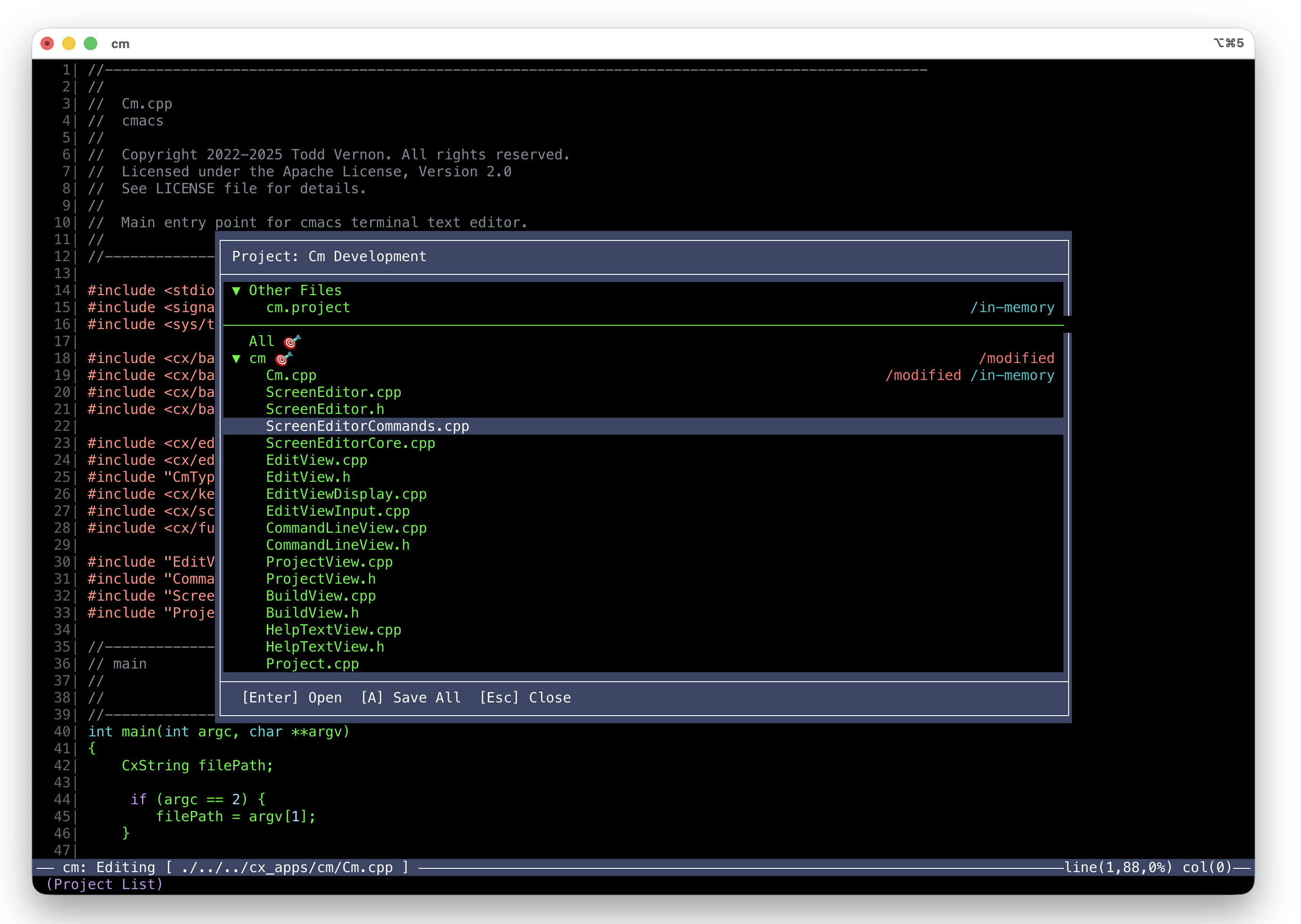
Project management built in

Press Ctrl+P to open the project dialog. Define your project once with a simple .project file listing source files and a build command.

Jump between buffers instantly, switch projects, or kick off a build without leaving the editor. The project dialog shows all open buffers and lets you navigate your codebase with single keystrokes.

cmacs project dialog showing buffer list and project navigation

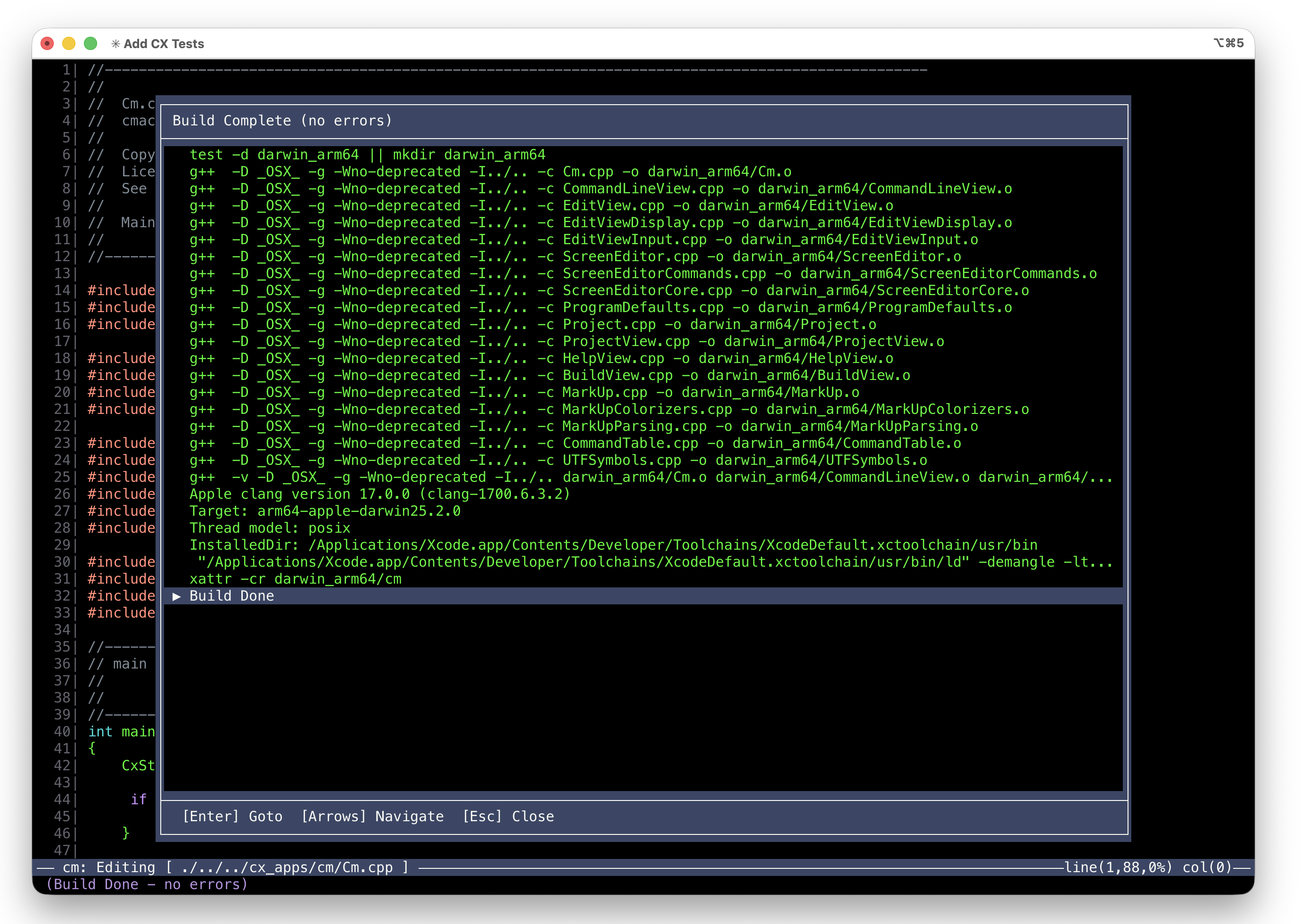
Build, fix, rebuild — without leaving the editor

Press Ctrl+B to view build output. cmacs captures compiler errors and warnings, parsing file paths and line numbers automatically.

Navigate directly to errors from the build output — the editor opens the file and jumps to the exact line. No more copying paths from terminal output.

cmacs build output showing compiler errors with navigation

Two ways to do everything

Every action works with the mouse and the keyboard. ESC commands for discoverability, Ctrl shortcuts for speed, mouse clicks when your hand is already there. No compromise either way.

Ctrl+H Help
Ctrl+P Project list
Ctrl+N Next buffer
Ctrl+S Split screen
Ctrl+U Unsplit
Ctrl+O Switch view
Ctrl+F Find again
Ctrl+R Replace again
Ctrl+K Cut to end of line
Ctrl+W Cut selection
Ctrl+Y Paste
Ctrl+L Line numbers
Ctrl+B Build output
Ctrl+V Page down
Ctrl+Z Page up
Ctrl+X Ctrl+S Save
Ctrl+X Ctrl+C Quit
ESC Command mode

Download and run, or build from source

Grab the binary and go. Or clone the repo, build it yourself, and make it your own.

Download for macOS Download for Linux

macOS users: Do not run cm directly until you run bash install.sh from the extracted archive. The installer clears the macOS Gatekeeper restriction automatically.

# Or build from source
mkdir -p ~/dev/cx/cx_apps && cd ~/dev/cx
git clone https://github.com/toddvernon/cx.git
cd cx_apps
git clone https://github.com/toddvernon/cm.git

# Build
cd ~/dev/cx/cx && make
cd ~/dev/cx/cx_apps/cm && make

# Run
./darwin_arm64/cm myfile.cpp